

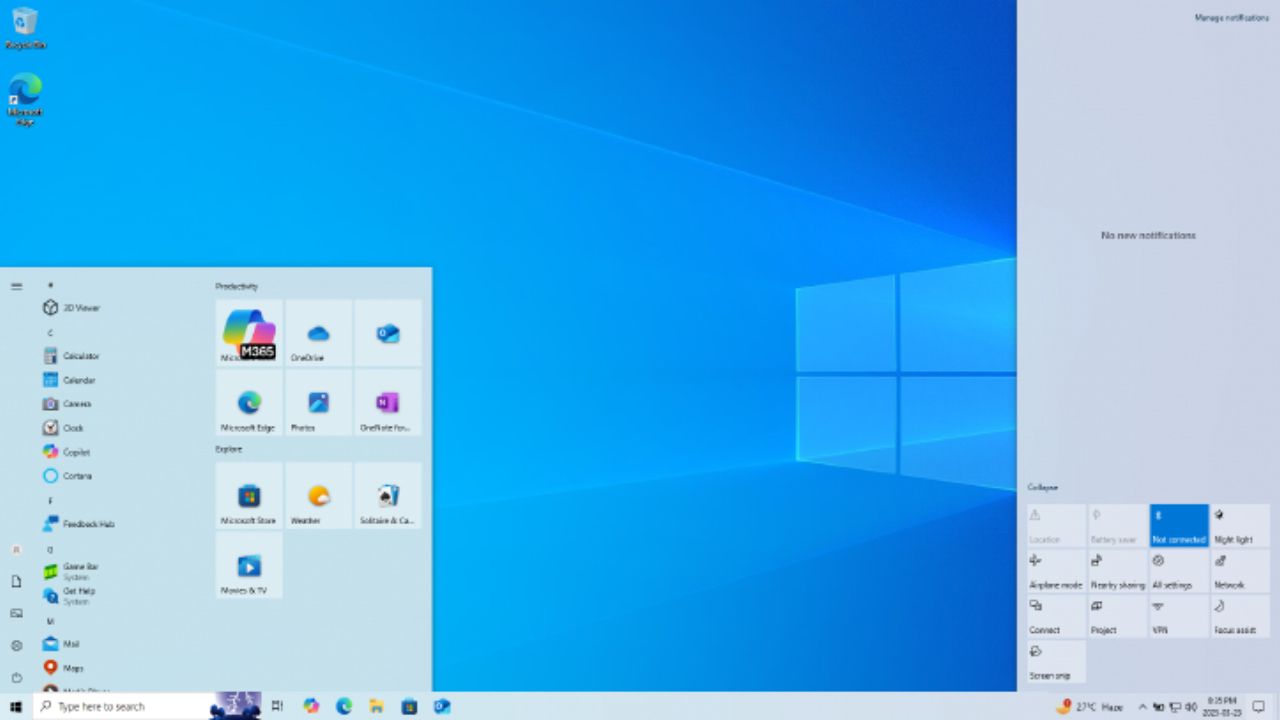

A new Windows PC looks clean on day one, but the default settings often come with extra clutter, background activity, and privacy-heavy features. The good news is you don’t need any “speed booster” apps to fix that. By turning off a few common features, you can make Windows feel faster, quieter, and more under your control. This guide covers twelve settings that many users disable early to reduce distractions, cut unnecessary background use, and keep the interface simple.
1) Windows Copilot
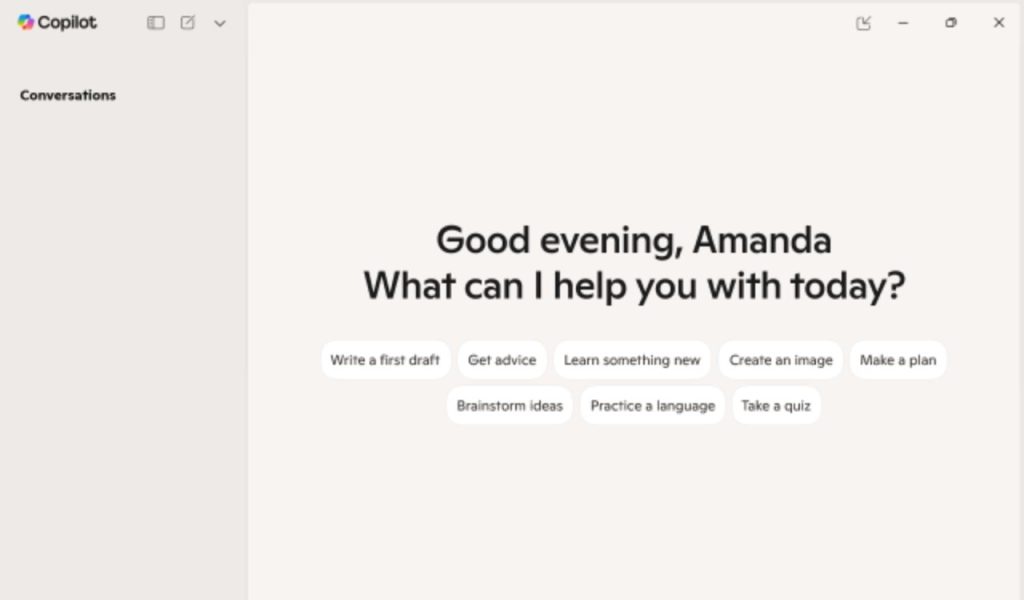
Copilot sounds useful, but if you never use it, it becomes clutter. It sits on the taskbar, may surface prompts, and makes Windows feel more “pushy” than helpful. Disabling Copilot is a quick cleanup move on a new PC. You reclaim taskbar space, cut down on distractions, and keep your workflow simple: open apps, search for files, and get things done. It also reduces accidental clicks that open a panel you didn’t want during a meeting or while gaming. Some people turn it off for privacy and peace of mind since they don’t want an always-present AI layer. Nothing breaks, and you can enable it again anytime. If you need it later, bring it back. Until then, enjoy a cleaner desktop.
2) Widgets (and the Microsoft Start News Feed)
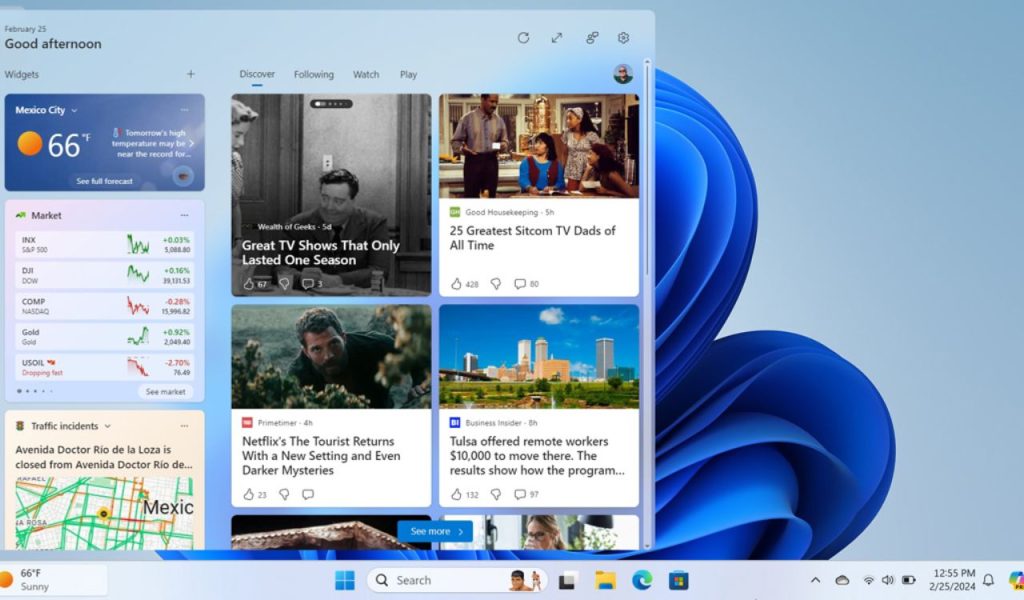
Widgets can be handy for quick things like weather, calendar, or traffic. The problem is the default Microsoft Start news feed. It’s designed to pull your attention, not help you finish work. You get headlines, “trending” stories, and a steady stream of distractions that can pop up when you just wanted a glance at the forecast. On some PCs, widgets also run background processes that feel pointless if you never use them. Many users either turn Widgets off completely or keep widgets but remove the news feed so it stays clean and useful.
3) Start Menu Recommendations
The Start menu is supposed to help you launch apps fast. But Windows often fills it with “Recommended” files, “Recently added” apps, and suggestions you didn’t ask for. That can feel messy, especially on a new PC where you want a simple layout. Turning off recommendations makes Start feel calmer and more private, since it stops broadcasting your recent activity on the screen. You keep your pinned apps and search, but you lose the extra noise. If you share your PC or work around others, this is also a quick way to stop Windows from showing what you opened last.
4) Startup Apps
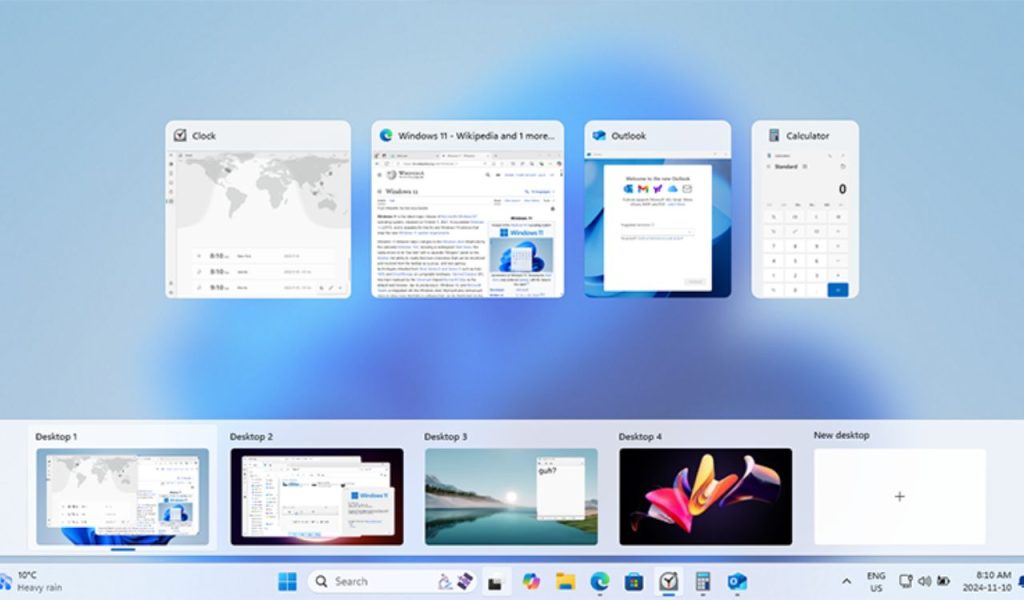
A common reason a new PC feels slow is not the hardware. It’s the pile of apps that launch as soon as Windows boots. Chat apps, cloud sync tools, game launchers, and “helpers” love to start automatically. That means longer boot times, more background CPU use, and less free RAM before you even open your first program. Disabling non-essential startup apps is one of the easiest upgrades you can make without spending a rupee. Keep only what you truly need at boot, like security tools or essentials. Everything else can start when you click it.
5) Delivery Optimization
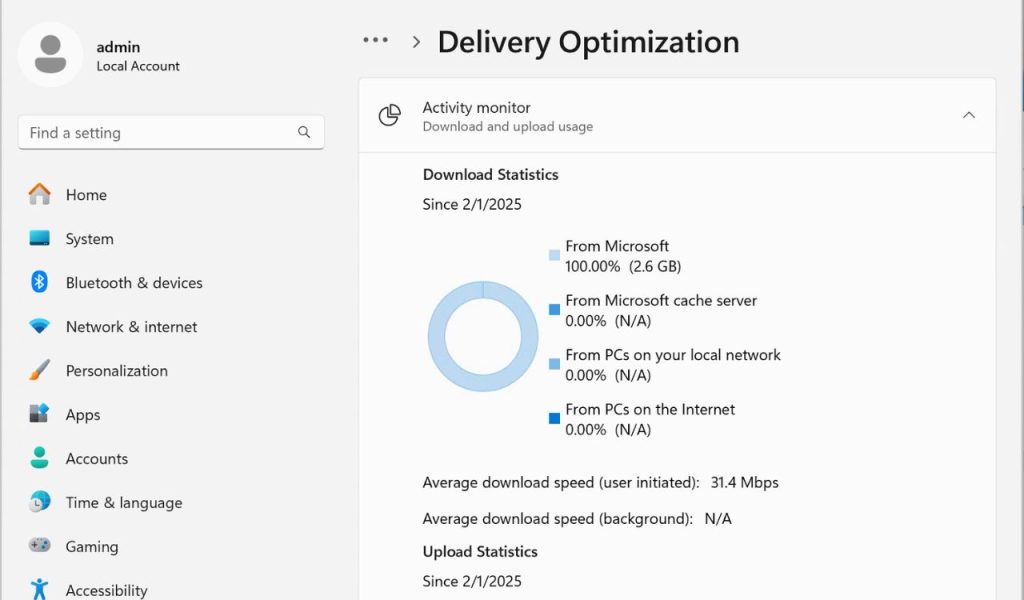
Delivery Optimization lets your PC download updates from other PCs and sometimes upload parts of updates to them. In theory, it can speed up downloads. In real life, it can chew bandwidth and create random network spikes, especially on shared Wi-Fi or a limited package. If you game, stream, or work on video calls, those spikes can be annoying. Many users disable it to keep updates simple: download directly from Microsoft, no sharing, no surprises. It’s a small change, but on slower connections, it can make your internet feel more stable.
6) Windows Search Highlights
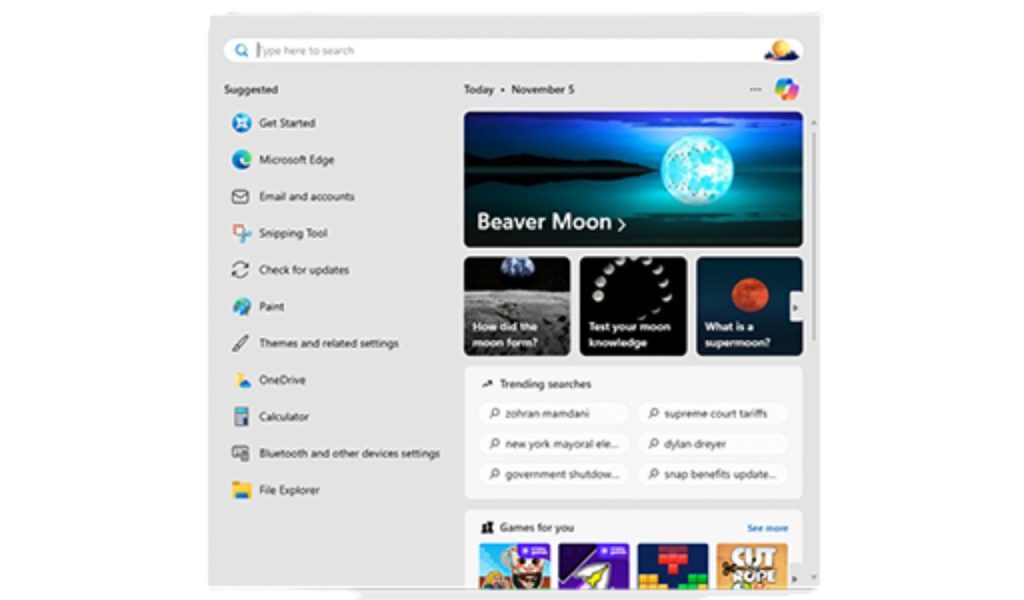
Search Highlights adds daily Bing-style content inside Windows Search, like trending topics, events, or “what’s new today.” It looks fancy, but it doesn’t help you find your files faster. Instead, it turns a utility into a content feed. Disabling it makes Search feel like a tool again: type a file name, open an app, move on. It also reduces the “online content” vibe inside parts of Windows that many people want to keep offline and focused. If you already use a browser for news, Search Highlights is mostly just extra clutter.
7) Advertising ID (Personalized Ads)
Windows uses an advertising ID to help apps show “personalized” ads based on how you use your PC. That’s not a feature most people asked for when they bought a laptop. Turning it off doesn’t remove ads everywhere, but it does cut one of the tracking signals Windows shares with apps. It’s a simple privacy win: fewer targeted suggestions, fewer “we noticed you like this” moments, and a little less profiling inside the OS. If you want your computer to feel like a work tool instead of an ad platform, disabling the Advertising ID is a clean move.
8) Diagnostic Data (Optional Telemetry)
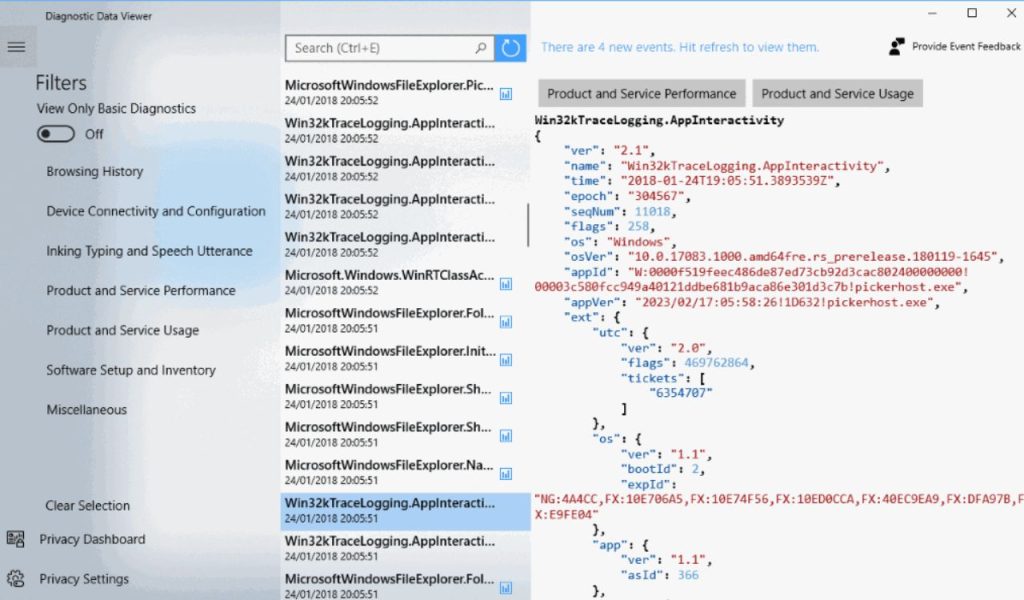
Windows will still send the required diagnostic data to function properly, but “Optional” diagnostics are a different story. Optional telemetry can include more detailed usage and device info. Many users switch it off because they don’t want their PC to share more than necessary. It’s not about being paranoid. It’s about choosing the minimum data exchange needed to run the system. Disabling optional diagnostics also makes Windows feel less like it’s constantly “reporting back.” You keep updates and security, but you reduce the extra data flow. For privacy-focused setups, this is usually a default change.
9) Background Apps
Some apps keep running even after you close them. They refresh, sync, send notifications, and quietly use CPU, RAM, and battery. On laptops, that can mean shorter battery life. On desktops, it can mean random slowdowns you can’t explain. Disabling background activity for apps you don’t need running is a practical performance cleanup. You’re not uninstalling anything. You’re simply telling Windows, “Don’t let this app run unless I open it.” Keep background access for essentials like messaging if you need instant alerts, and cut it for everything else. Less hidden activity, more control.
10) Xbox Game Bar and Game Mode
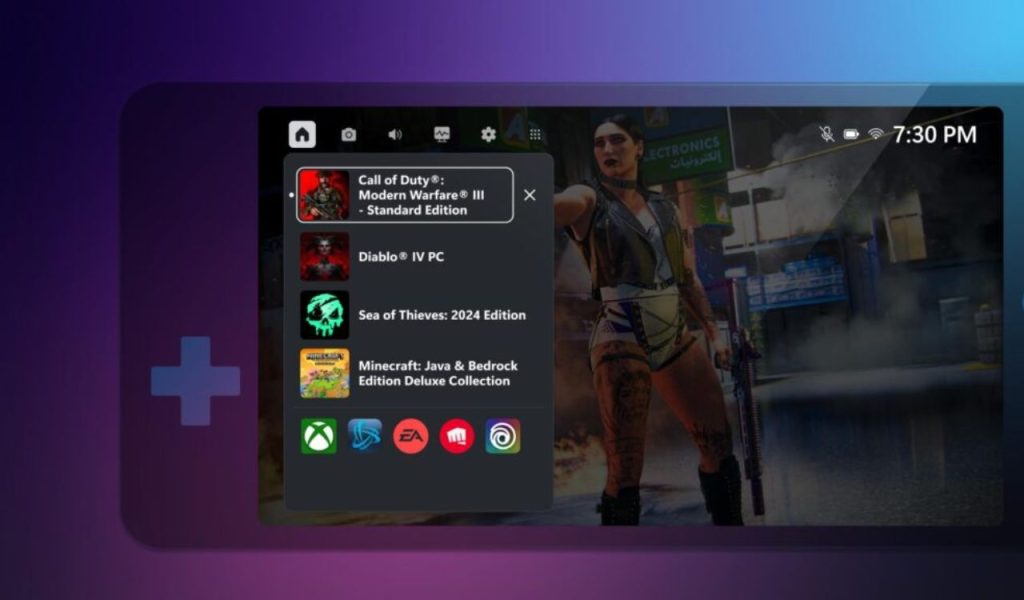
If you don’t game, Game Bar and Game Mode can feel pointless. Game Bar can pop up overlays, listen for shortcuts, and run services you never use. Game Mode can tweak system behavior in ways that don’t matter for non-gaming work. Many people disable both to avoid accidental overlays and to reduce background processes. If you do game, you might keep them. But if your PC is mainly for work, browsing, or study, turning these off is an easy way to simplify the system. No feature loss you’ll miss, just fewer extras running.
11) Notifications, Tips, and “Suggestions.”
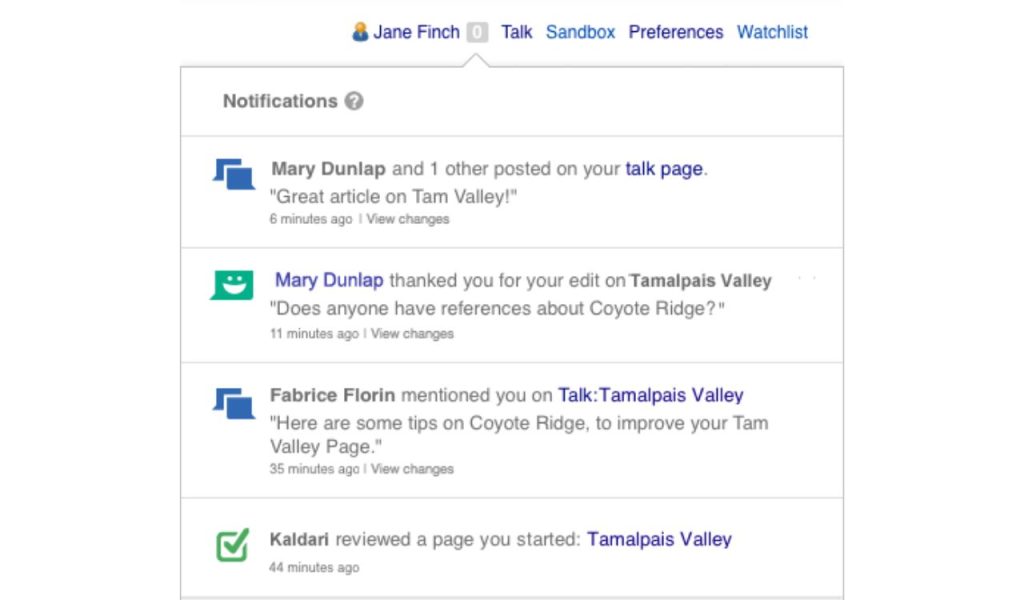
Windows can be noisy. Tips, suggestions, “finish setting up your device,” account prompts, and random nudges can break your focus at the worst time. Most users don’t mind security alerts, but they hate marketing-style pop-ups. Turning off tips and suggestion notifications makes Windows feel quieter and more professional. You still keep important system messages if you want, but you remove the constant “try this feature” behavior. This is especially worth doing on a new PC, because Windows tends to push onboarding messages for weeks. Disable the fluff, keep the essentials, and stay focused.
12) Visual Effects and Transparency
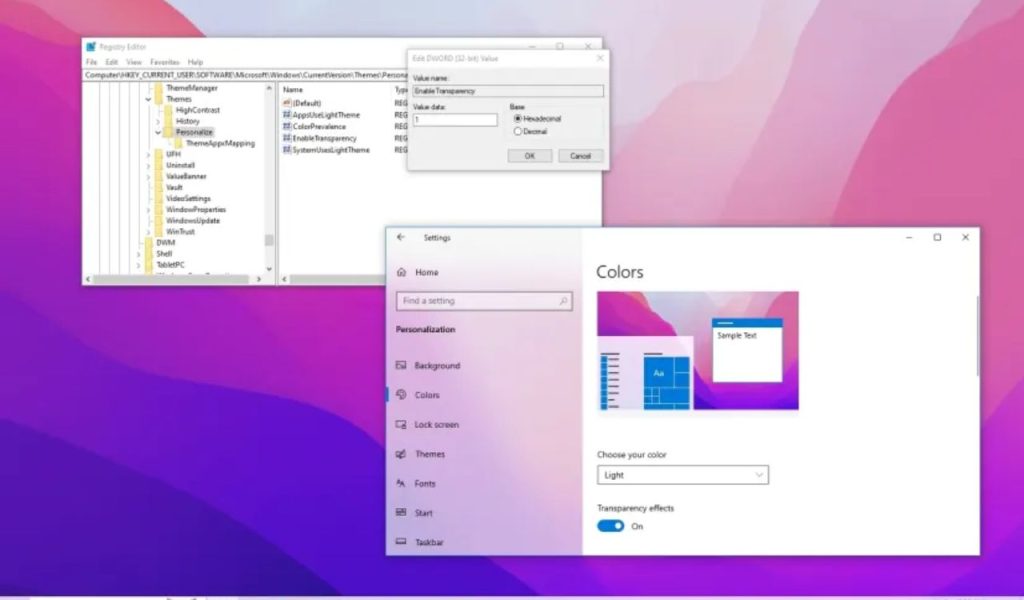
Animations, shadows, and transparency look modern, but they’re not free. On older or budget hardware, these effects can make Windows feel heavy, especially when switching windows, opening Start, or multitasking. Reducing visual effects can make the PC feel instantly faster, even if the specs don’t change. You’re basically telling Windows to prioritize speed over style. Many users keep text sharp and layout clean but turn off extra motion and glass effects. If you want the system to feel snappy and responsive, this is one of the quickest tweaks with a real “I can feel it” result.