

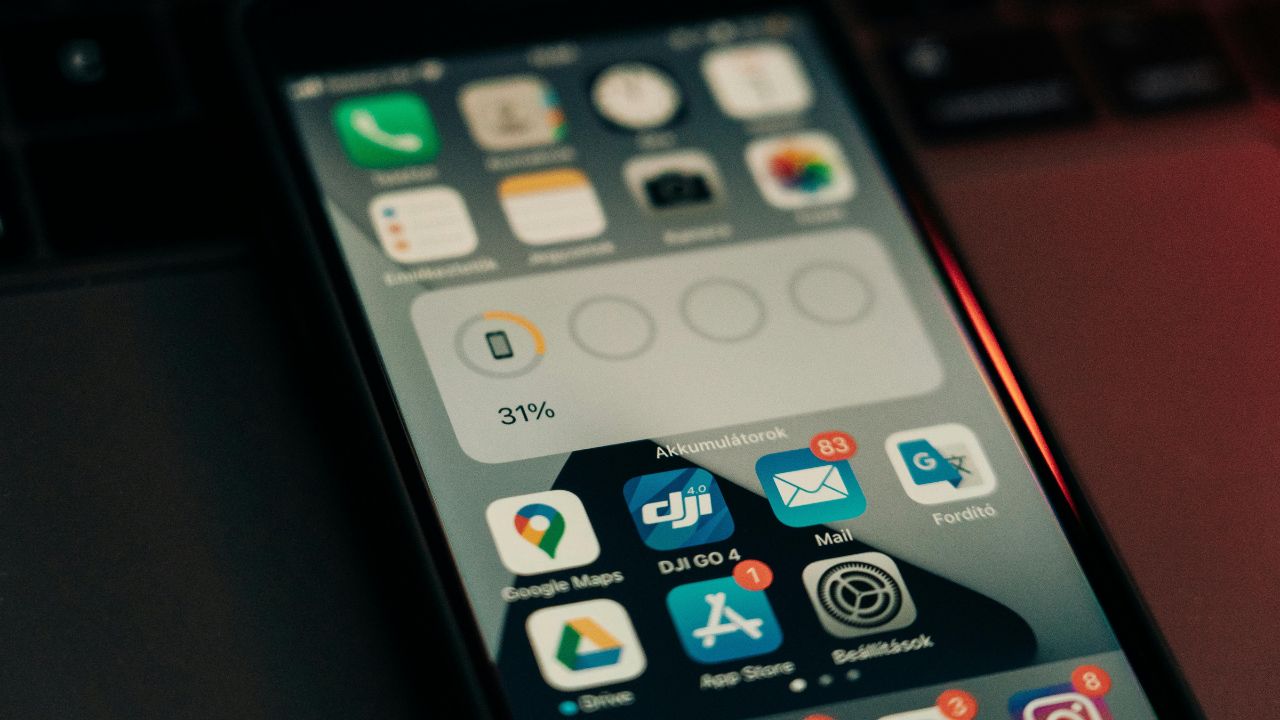

Modern smartphones come packed with tools that shape daily use, yet many helpful settings remain buried behind menus most people rarely explore. These options improve readability, protect privacy, extend battery life, and reduce small frustrations. Learning how to adjust built-in features helps devices work more smoothly. Small changes, like limiting background activity or customizing alerts, make phones feel faster and easier to manage. Exploring these hidden controls encourages better habits, improves comfort during long sessions, and supports more efficient, less distracting daily use.
1. Limit Background App Activity
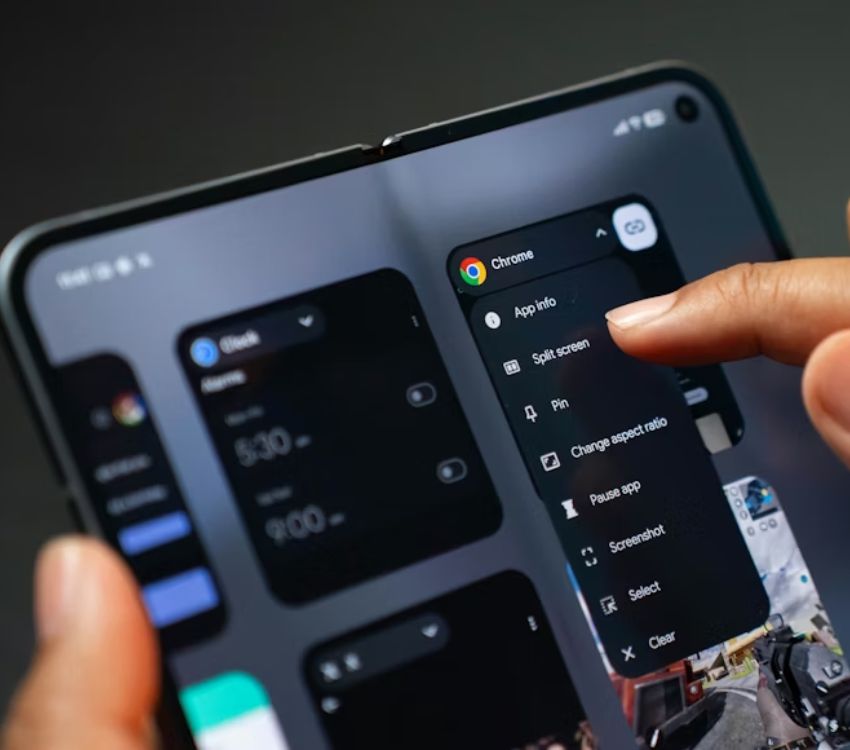
Many apps continue running processes even when not actively used, quietly consuming battery power and mobile data. Phones include controls that restrict background activity for selected apps, allowing only essential services to refresh in the background. By reviewing which apps truly need constant access, users can reduce unnecessary syncing and limit resource drain. This setting is especially useful for games and social apps that check for updates frequently. Adjusting background limits can improve battery endurance throughout the day and reduce sudden slowdowns caused by unseen tasks running behind the scenes.
2. Customize Notification Categories
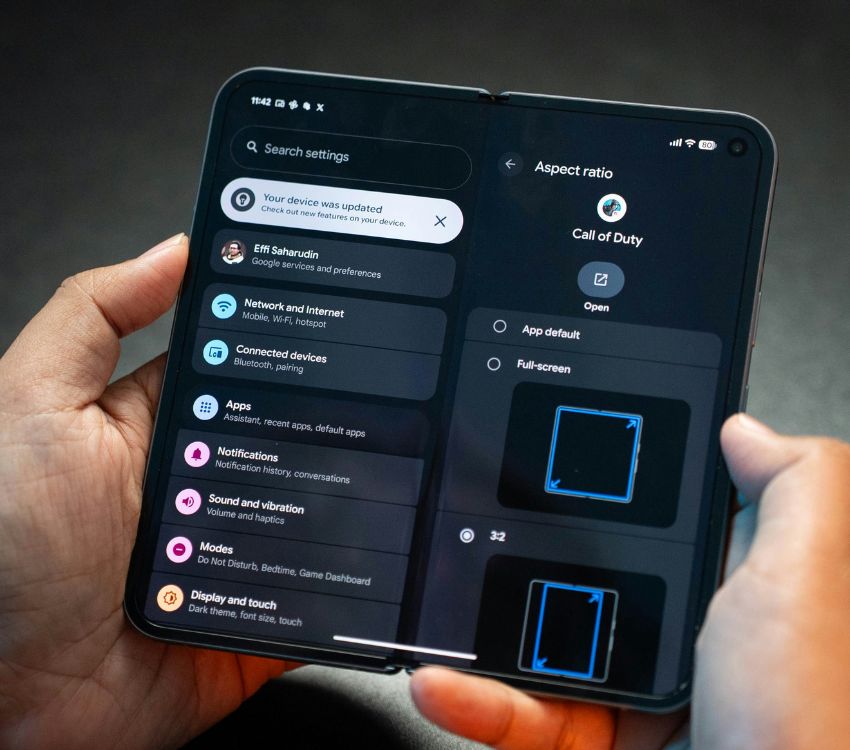
Notification settings go beyond simple on/off controls, letting users manage alerts by category within each app. Games, messaging tools, and system services often separate notifications into groups like promotions, activity updates, or critical alerts. Fine-tuning these categories reduces noise while preserving important messages. This prevents constant interruptions during play or focused tasks. Fewer unnecessary alerts improve concentration and reduce screen fatigue. Managing notification categories also limits checking the phone repeatedly, creating a calmer, more intentional daily experience.
3. Enable Data Saver for Select Apps

Phones include data-saving modes that limit how apps use mobile data when not actively opened. Instead of applying this limit globally, users can allow critical apps to bypass restrictions while keeping others capped. This balance prevents background updates from draining data plans while still ensuring essential services function properly. For mobile gaming, limiting background data use can stabilize connections and reduce unexpected network slowdowns. Data saver controls help avoid surprise data charges and keep usage predictable, especially for people who rely on mobile networks throughout the day.
4. Adjust System Animation Speeds

System animations create smooth transitions between screens, but they can also make devices feel slower than they actually are. Developer or accessibility settings often include options to reduce animation speed or disable certain visual effects. Shortening animations makes navigation feel faster and more responsive, especially on older phones. This change does not remove features but trims visual delays that add friction to everyday use. Faster transitions can improve perceived performance during frequent app switching, gaming sessions, and multitasking, making routine interactions feel more efficient and fluid.
5. Activate One-Handed Mode
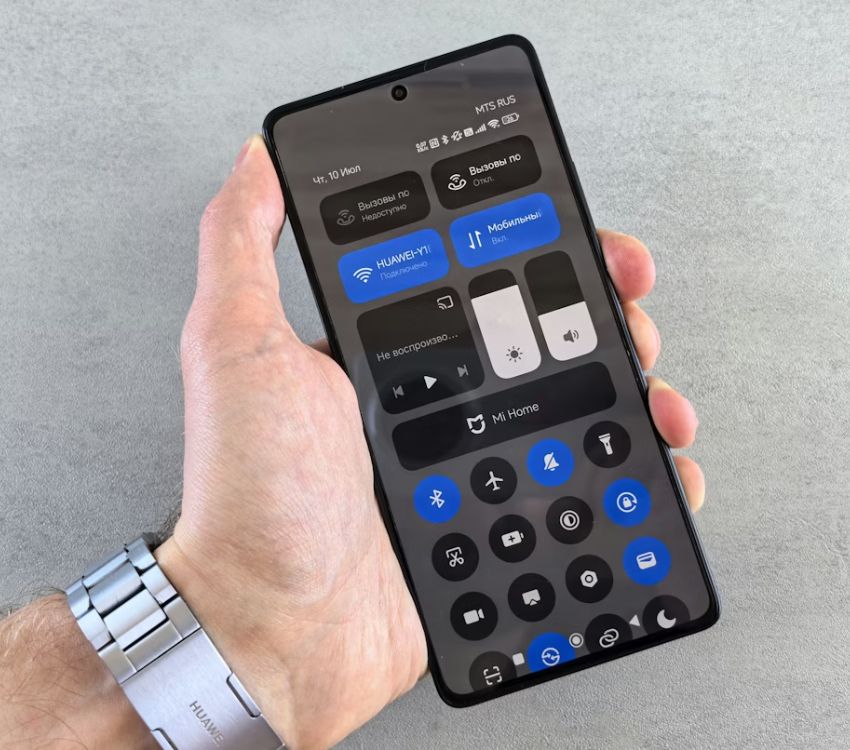
Large screens improve visibility but can be difficult to manage comfortably with one hand. One-handed mode shrinks the active display area or shifts content downward for easier and safer reach. This setting reduces strain when typing, browsing, or navigating menus on the move. It also lowers the risk of accidental drops when stretching fingers across the screen unexpectedly. Enabling one-handed mode makes everyday actions more comfortable, especially during commuting or casual use. Over time, reduced hand strain can make longer sessions feel less tiring, awkward, and more controlled.
6. Review App Permission History
Phones track when apps access sensitive permissions such as location, microphone, or camera. Reviewing permission history reveals which apps use these features and how often. This transparency helps users spot unnecessary access and adjust permissions accordingly. Limiting background access can protect privacy and reduce hidden battery drain caused by location tracking. For gaming and social apps, controlling permissions prevents unnecessary data collection while keeping core features intact. Regularly checking permission history builds awareness of how apps interact with personal data and supports safer daily phone use.
7. Set Focus or Do Not Disturb Schedules
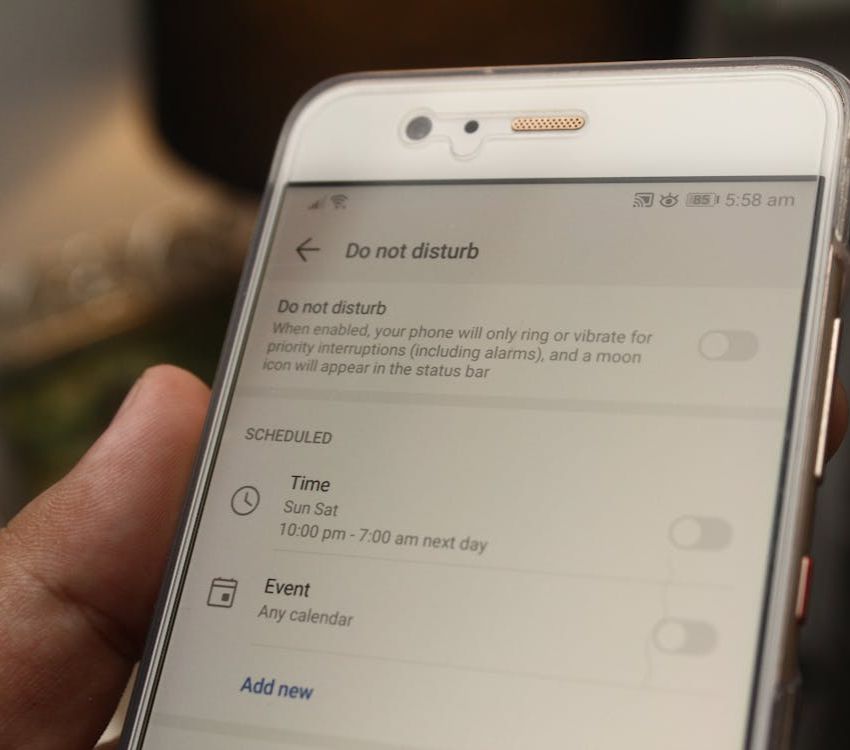
Focus modes and scheduled Do Not Disturb settings help manage distractions by silencing nonessential alerts during chosen times. Users can create profiles for work, gaming sessions, or sleep, allowing only priority contacts or apps to break through. This structure reduces constant interruptions and improves concentration. Scheduled quiet periods also support better rest by limiting late-night notifications. Over time, these routines help create healthier phone habits, reducing compulsive checking and improving the balance between staying informed and maintaining focus on tasks or downtime.
8. Use Smart Battery Optimization
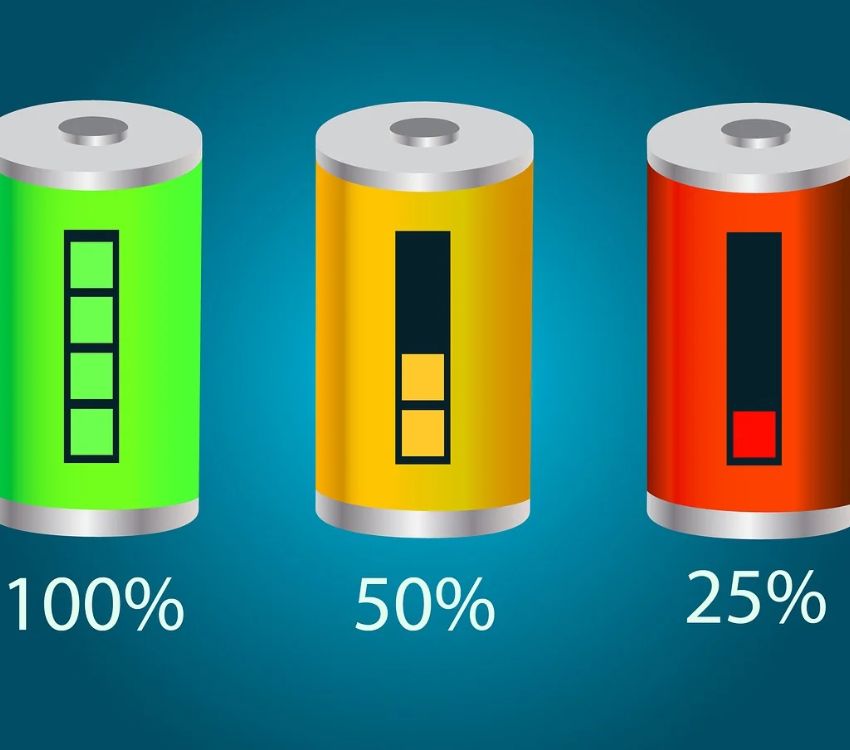
Battery optimization tools learn usage patterns and limit power to apps that are rarely used. Instead of closing apps manually, users can rely on built-in smart optimization to manage resources automatically. This reduces background drain without breaking important notifications. For gaming, balanced optimization prevents performance drops while still extending overall battery life. Smart battery features adapt over time, making them more effective with consistent use. This setting supports longer daily uptime and reduces the need for frequent charging, especially during heavy use periods.
9. Enable Reading or Comfort Modes

Reading and comfort modes adjust screen color temperature and brightness to reduce eye strain during extended device use. These settings filter harsh blue light and soften contrast, making text easier to read in low-light environments and dim conditions. For gaming or browsing at night, comfort modes help prevent fatigue, headaches, and other visual discomfort. Users can schedule these modes to activate automatically in the evening. Consistent use supports healthier screen habits, improves overall comfort during long sessions, and makes nighttime phone use less disruptive to sleep patterns.
10. Turn On Find My Device Features
Find My Device tools help quickly locate lost phones, lock them remotely, or erase sensitive data if recovery is not possible. Enabling these features adds an extra layer of security without affecting daily performance. Many people forget to activate these essential controls until a device goes missing. Keeping location and recovery options active significantly increases the chances of successfully retrieving lost phones and protecting personal information. This setting provides peace of mind and reduces the stress and worry associated with misplacing devices, especially in busy or unfamiliar environments.