


Modern computers offer multiple power options, but many users rely almost exclusively on Sleep mode because of its simplicity and convenience. Sleep keeps your session ready to resume instantly, but it’s not always the ideal choice. In certain situations, shutting down your PC is the smarter move, helping improve performance, protect hardware, save power, or prevent system issues. Whether you use your system for work, gaming, or heavy workloads, knowing when to shut it down can make a noticeable difference in long-term stability. These small decisions add up over time, shaping how reliable and efficient your PC truly becomes, especially for users who depend on consistent performance.
1. Long Breaks from PC Use

If you know you won’t be using your PC for an extended period, such as a weekend trip or even just a full day, shutting down is better than leaving it in Sleep mode. Sleep still draws small amounts of power, and over longer stretches, that wasted energy adds up. A full shutdown saves electricity and protects against potential power fluctuations while you’re away. Many users leave their PCs sleeping out of habit, not realizing the long-term benefit of shutting down when the system won’t be touched for hours or days. This simple change also reduces the risk of automatic wake events or unnecessary background processes running without supervision.
2. After Major Updates
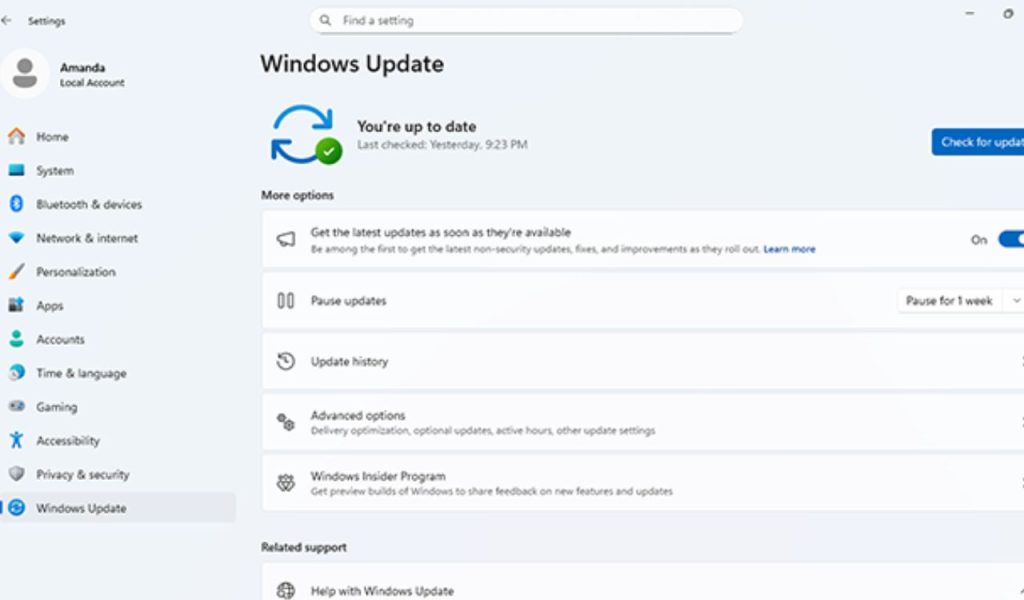
Major system updates, driver installations, and critical patches often require a full restart to apply correctly. Leaving your PC in Sleep mode after making significant changes can cause bugs, instability, or incomplete configurations. A shutdown ensures all processes close cleanly and the system boots with fresh initialization. Many users rely on Sleep for convenience, not realizing their system might be running outdated configurations in the background. Performing a proper shutdown after heavy updates ensures your PC starts clean, stable, and fully optimized for whatever you’re doing next, reducing the chance of issues like driver conflicts or cloud sync errors.
3. System Running for Days
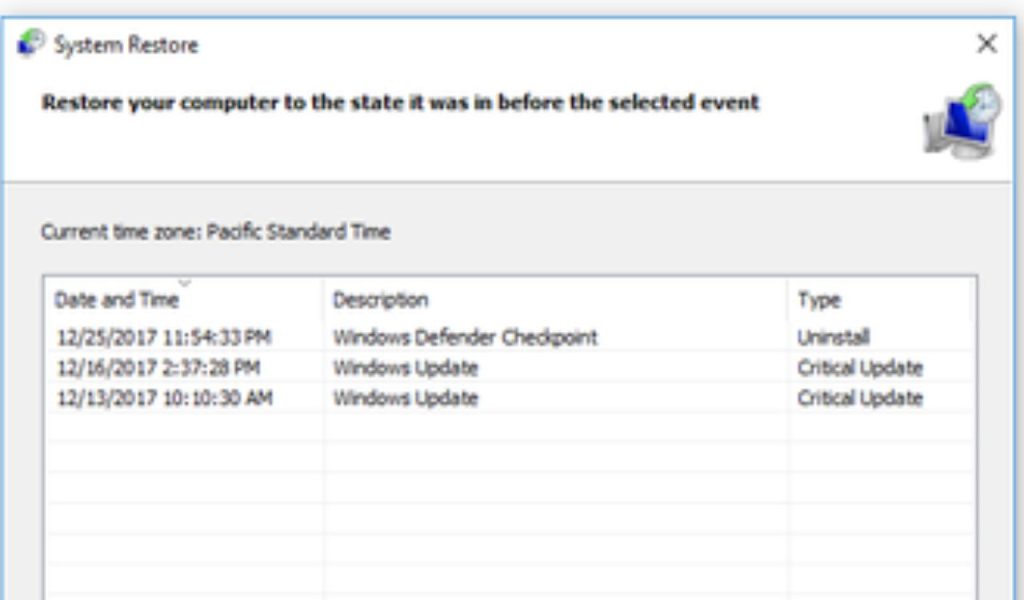
Keeping your PC running continuously might seem harmless, especially for users who multitask or leave programs open. But over time, memory leaks, background processes, and accumulated temporary data can slow your system down. A full shutdown clears RAM, resets system tasks, and eliminates lingering processes that Sleep mode preserves. If your PC has been running for several days without a restart, shutting down helps restore smoother performance and prevents long-term instability. Many users don’t realize how much clutter builds up in the background, and a complete shutdown can often resolve slowdowns that appear without an obvious cause.
4. Fixing Performance Issues

If your PC is acting sluggish, freezing, or behaving strangely, shutting down often does more than Sleep mode ever could. Sleep preserves your open session along with whatever bugs, conflicts, or stuck processes were already running. A shutdown fully resets hardware states, stops all system tasks, and clears problematic memory allocations. Many users skip this step and end up fighting the same issues repeatedly. Whether you’re troubleshooting crashes, network glitches, or software conflicts, a proper shutdown gives your system a clean slate and helps diagnose issues more effectively. In many cases, a full power cycle can fix odd problems without needing deeper repairs.
5. During Power Instability
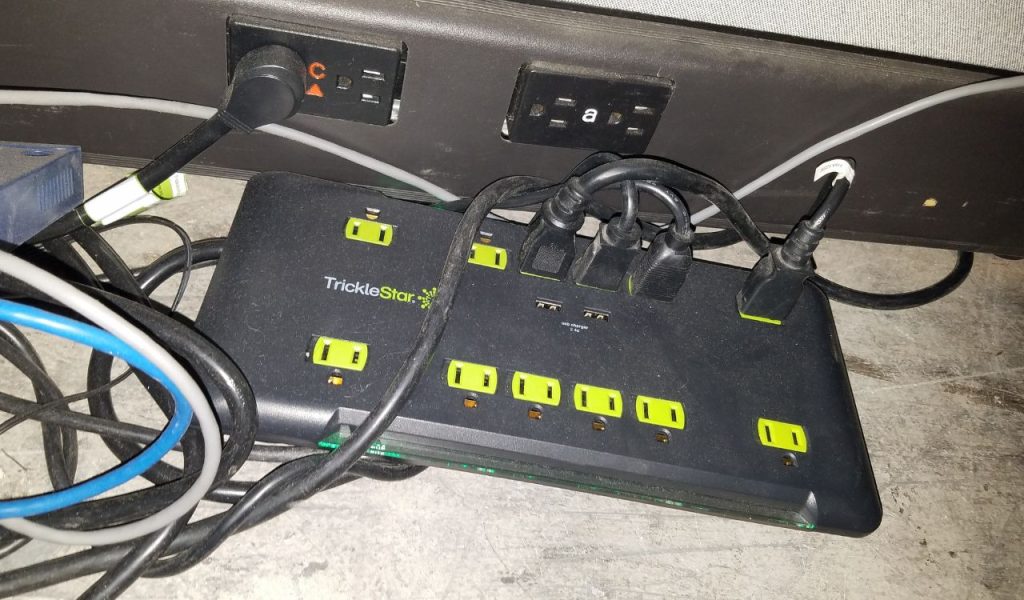
Electricity fluctuations can damage your PC or corrupt data, especially if the machine is left in Sleep mode, where components remain partially powered. During storms or in areas prone to outages, shutting down protects your hardware from sudden power loss. Sleep mode does not shield your system the same way a full shutdown does. Even with surge protectors, sudden drops or spikes can cause problems. Turning the PC completely off ensures volatile processes stop and that your hardware remains safe until power conditions stabilize again. This is especially important for desktops, which do not have built-in battery protection like laptops do.
6. When PC Is Overheating
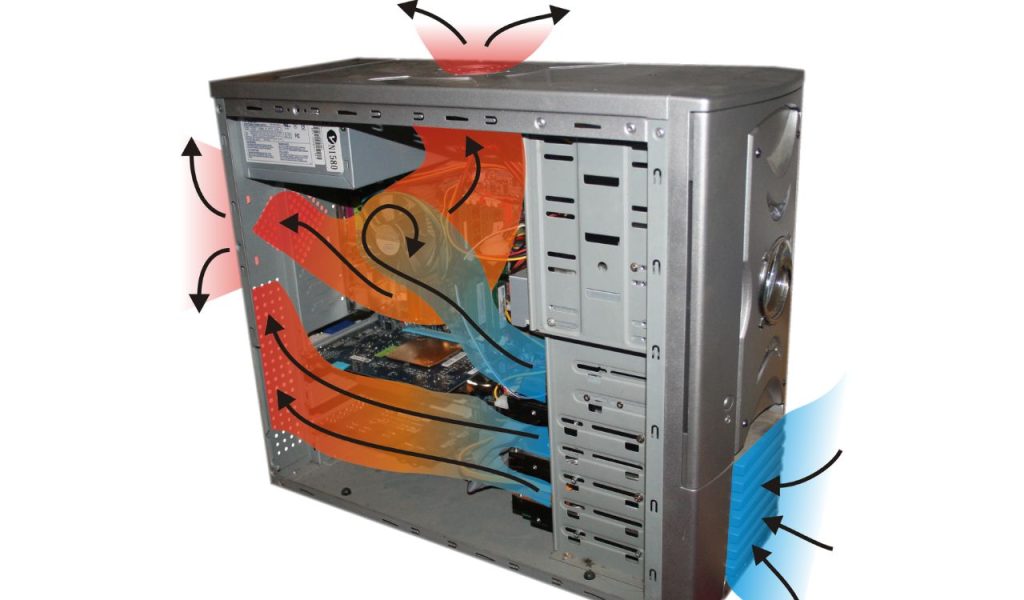
If your system has been running hot or your fans remain loud even when idle, shutting down gives the hardware a moment to cool completely. Sleep mode preserves active memory states and often doesn’t fully reduce heat buildup. Overheating shortens component lifespan and can lead to throttling or permanent damage. A full shutdown resets sensors, cools internal components, and gives your system a chance to rebalance thermal behavior. For users in warm environments or those with dust buildup, shutting down is a helpful step toward protecting long-term hardware health. It also gives you a chance to inspect dust filters and airflow conditions safely.
7. Stopping Background Clutter

Many background apps, startup processes, and hidden tasks keep running even while a PC sleeps. Over time, these consume RAM, CPU cycles, and network bandwidth. A shutdown forces all programs to close and prevents unnecessary apps from reopening until you intentionally launch them again. This helps reduce clutter and keeps your system running more efficiently. For users who install lots of software, forget about background apps, or leave browsers open with multiple tabs, shutting down from time to time ensures that your next session starts clean and optimized. It’s one of the easiest ways to eliminate hidden resource drains without technical troubleshooting.
8. For Maximum Stability

Sleep mode preserves your previous session, which is convenient unless you’re preparing for something that requires maximum stability. High-performance gaming, video editing, streaming, and professional workloads all benefit from a clean start. A shutdown ensures that leftover processes, memory fragments, or hidden tasks don’t interfere with performance or cause crashes. Many users experience stutters, lag, or strange errors simply because they resumed an old session. By shutting down, you guarantee your PC boots into a fresh environment, ready for demanding tasks without unexpected interruptions. This is especially useful before competitive gaming sessions or important work deadlines.
9. Before Moving Your PC
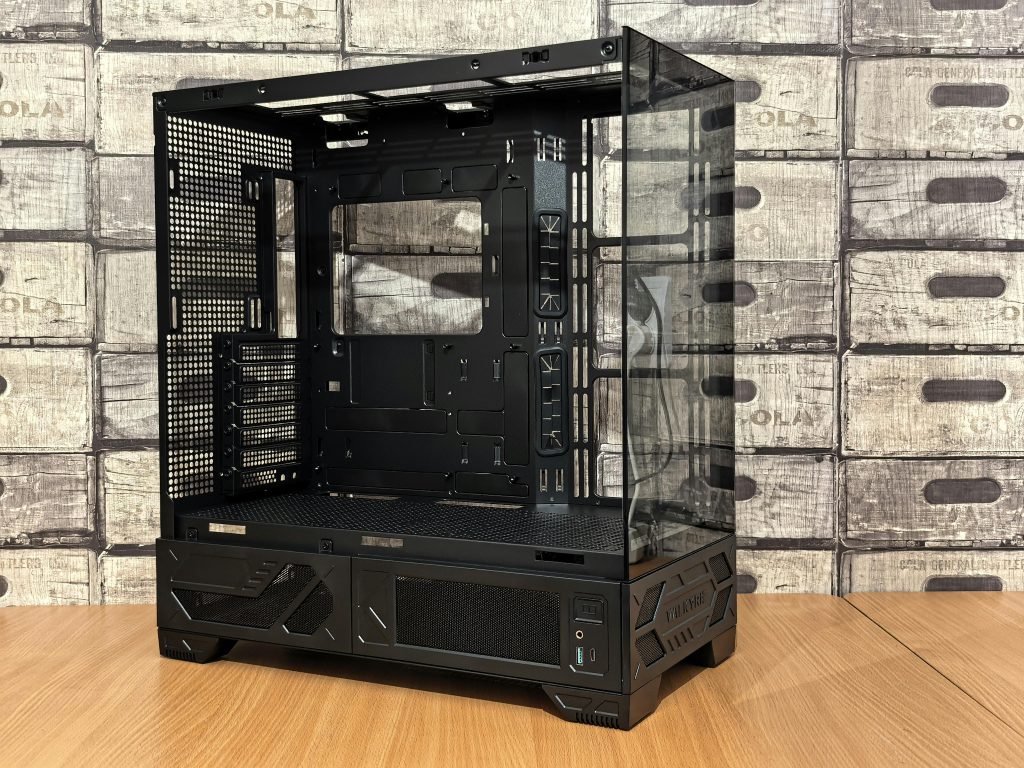
Whether you’re carrying a laptop in a bag or transporting a desktop tower, Sleep mode isn’t ideal during movement. Laptops can wake accidentally, heat up inside a bag, or drain the battery. Desktop systems can suffer hardware stress if the system wakes during transport. Shutting down ensures all hardware is safely powered off and protected from accidental operation. It also prevents data loss in case of sudden motion, impacts, or improper airflow. For any kind of travel, a full shutdown is always the safer and more reliable choice. This simple precaution prevents overheating, drive damage, and unexpected battery drain.
10. Saving Power & Extending Lifespan
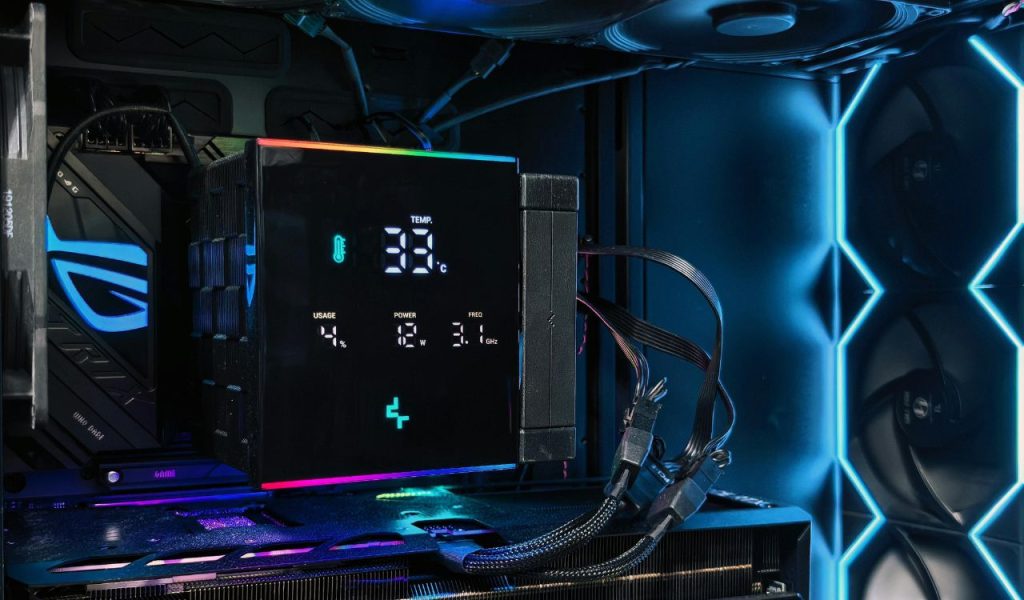
Even though Sleep mode uses very little power, it still consumes energy over long periods, especially for users who leave their PCs sleeping daily. Shutting down saves more electricity and reduces wear on memory modules, fans, and power delivery components. Over the years of use, this small difference can extend the life of your hardware noticeably. Many users keep their PCs sleeping out of convenience, not realizing how much healthier their systems would be with occasional shutdowns. Adopting this habit also reduces unnecessary background tasks that accumulate over time, keeping your system running smoother and more efficiently.