


Your Wi-Fi may be slowing down for no clear reason.
If someone is secretly using your network, your speed, security, and data privacy could all be at risk.
Below are three key sections that explain how to see every device on your network, identify suspicious activity, and secure your Wi-Fi from unauthorized users.
How to Check Which Devices Are Connected to Your Wi-Fi
Understanding how to view connected devices is the most important step in detecting Wi-Fi theft.
These methods make it easy to identify every device currently on your network.
Using Your Router’s Admin Panel
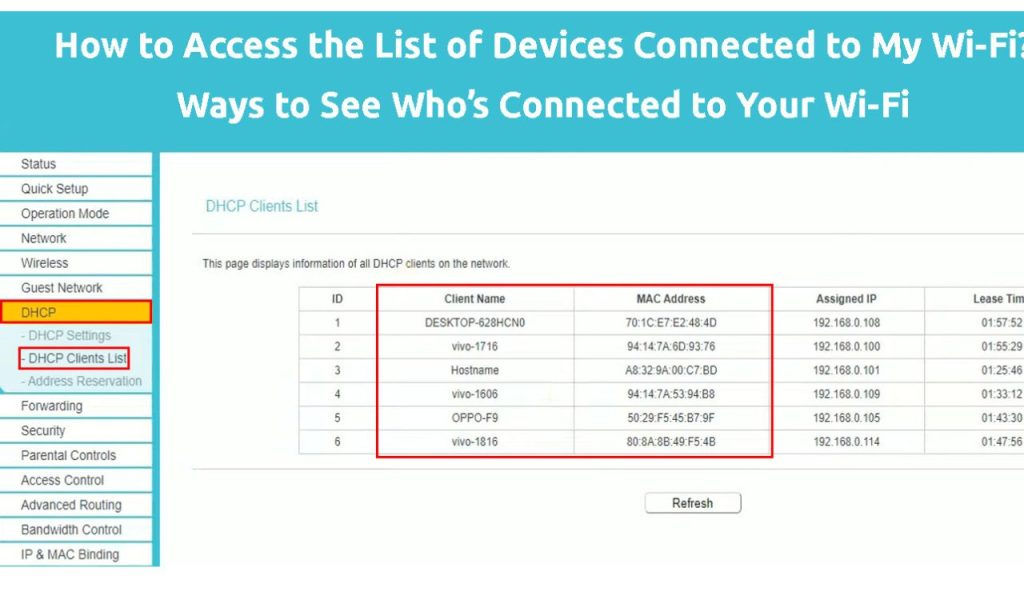
Every router includes an admin dashboard where you can see all active and offline devices.
You can access it by entering your router’s IP address, often 192.168.0.1 or 192.168.1.,1 into your browser.
Once inside, look for a section labeled Connected Devices, Device List, or DHCP Clients.
This list shows names, MAC addresses, and IP addresses for each device.
If you spot unfamiliar names or unknown devices, it’s a sign that someone may be connected without permission.
Some routers also allow you to block or rename devices for easier tracking.
Using Network-Scanning Apps
If navigating router settings feels complex, device-scanning apps offer a simpler option.
Apps like Fing (mobile) or Advanced IP Scanner (desktop) automatically scan your network.
These tools show each device’s name, manufacturer, IP, and MAC address.
They also help you quickly identify unusual devices that appear suspicious.
Because many apps offer real-time monitoring, they alert you when a new device joins your Wi-Fi.
This makes it easier to detect unauthorized users the moment they connect.
Signs That Someone May Be Using Your Wi-Fi Without Permission
Even before checking device lists, there are noticeable signs that point to unauthorized access.
These symptoms often reveal bandwidth theft or suspicious activity behind the scenes.
Sudden Drops in Internet Speed
If your internet becomes slow unexpectedly, it could mean someone else is sharing your bandwidth.
Slowdowns that occur during times when no one is using heavy apps are especially suspicious.
Although slow speeds can also be caused by your internet provider or router issues, unexplained declines are worth investigating.
The more devices are connected, the more congested your network becomes.
Higher-Than-Normal Data Usage or Constant Router Activity
Unexpected spikes in your monthly data usage can indicate hidden devices streaming or downloading.
Check your ISP’s usage report to confirm whether your consumption seems unusually high.
Another warning sign is your router’s activity lights blinking rapidly when no one is at home.
Constant blinking often means sustained network activity from unauthorized users.
How to Stop People From Stealing Your Wi-Fi
Once you confirm an unfamiliar device on your network, it’s important to take action immediately.
These steps protect your bandwidth, data, and device security going forward.
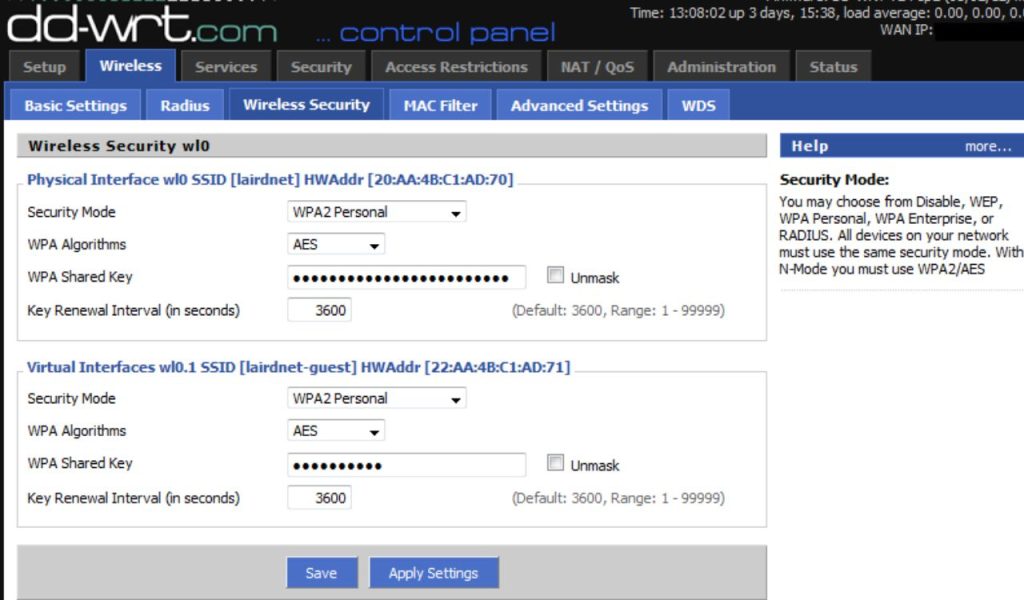
Change Your Wi-Fi Password
Changing your Wi-Fi password instantly disconnects every device on the network.
Only authorized users who have the new password will regain access.
Choose a strong password that combines uppercase letters, lowercase letters, numbers, and special symbols.
Avoid common names or easy-to-guess phrases like “password123” or your birthday.
After updating your password, apply the changes and reconnect your personal devices.
Any unauthorized devices will remain blocked unless they obtain the new login details.
Strengthen Your Router’s Security Settings
Make sure your router uses WPA3 or WPA2 encryption, which are far more secure than the outdated WEP.
You can check and update this setting in your router’s security or wireless section.
Disable WPS, which allows quick pairing but is vulnerable to brute-force attacks.
Turning it off reduces the risk of strangers guessing their way into your network.
It’s also crucial to change your router’s default admin username and password.
Keeping factory settings makes your device much easier to hack.
If your router offers MAC address filtering, you can whitelist your trusted devices.
This adds another layer of protection by blocking all others automatically.