


Windows 11 arrives with a polished interface, modern visuals, and streamlined navigation, yet beneath the surface lies an impressive amount of hidden power that many users never realize exists. While casual users may stay within the familiar territory of the taskbar and Start menu, the system actually contains numerous advanced functions designed to make computing smoother, smarter, and more efficient. These features are often buried in settings, enabled only through shortcuts, or tucked inside apps that people rarely open, which is why even experienced users overlook them.
1. PowerTools
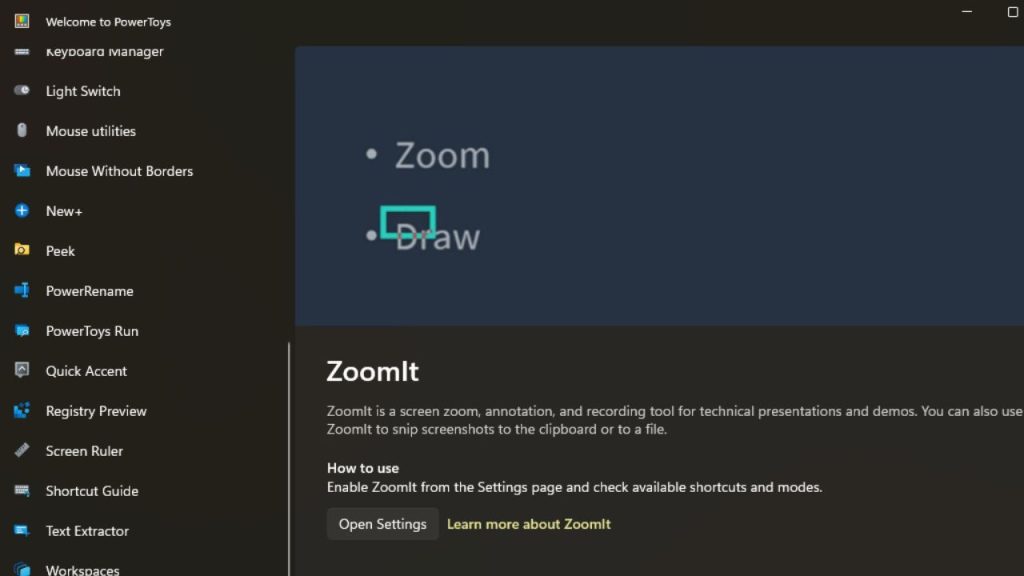
PowerTools refers to the advanced enhancement suite provided through PowerToys, a powerful collection of tools created by Microsoft that dramatically extends what Windows 11 can do. Many people never discover this suite because it does not come preinstalled, yet once downloaded, it offers professional-grade capabilities that blend seamlessly into daily computing. It includes sophisticated window management systems, keyboard remapping options, bulk file renaming tools, quick-launch utilities, color pickers, and numerous other features designed to eliminate inefficiency.
2. SnapMaster
SnapMaster is the deeper version of Windows 11’s Snap Layouts and Snap Groups, transforming simple window snapping into a highly structured, productive arrangement system. Many users only know the basic method of dragging a window to one side, but the platform offers far more sophisticated controls. Hovering over the maximize button reveals multiple layout templates designed for complex workflows, whether someone is researching, writing, editing, coding, or monitoring several applications at once.
3. QuickMenu
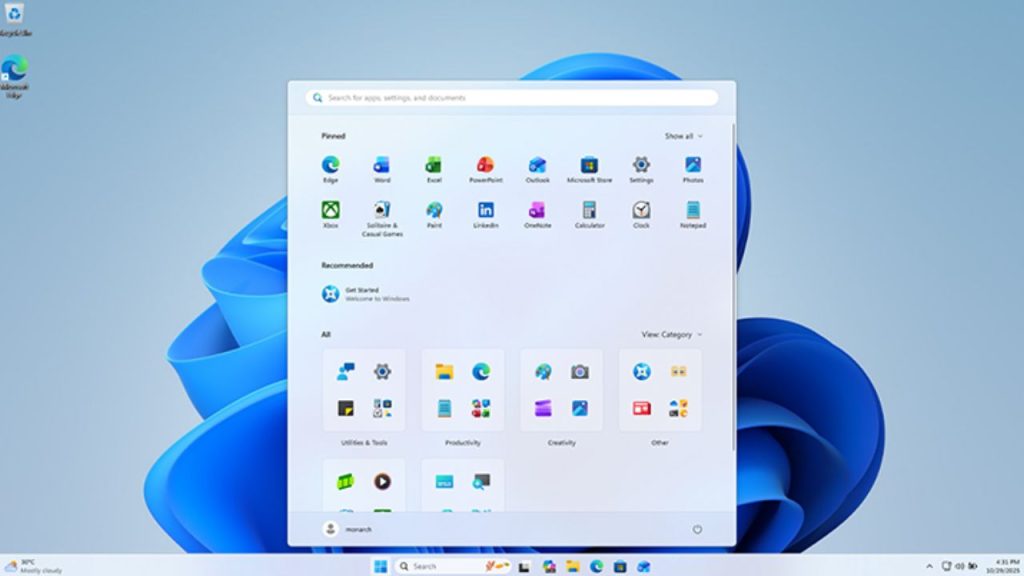
QuickMenu is the hidden, fast-access Start button shortcut activated through Win + X or by right-clicking the Start icon, offering a surprisingly deep range of system tools that many users rarely notice. Instead of navigating through layered menus or searching for system settings, QuickMenu delivers immediate access to device management, disk utilities, network controls, file explorers, administration panels, and important diagnostic tools. This makes it especially valuable for troubleshooting, setup tasks, or adjustments that would otherwise require digging through multiple submenus.
4. ClipHistory
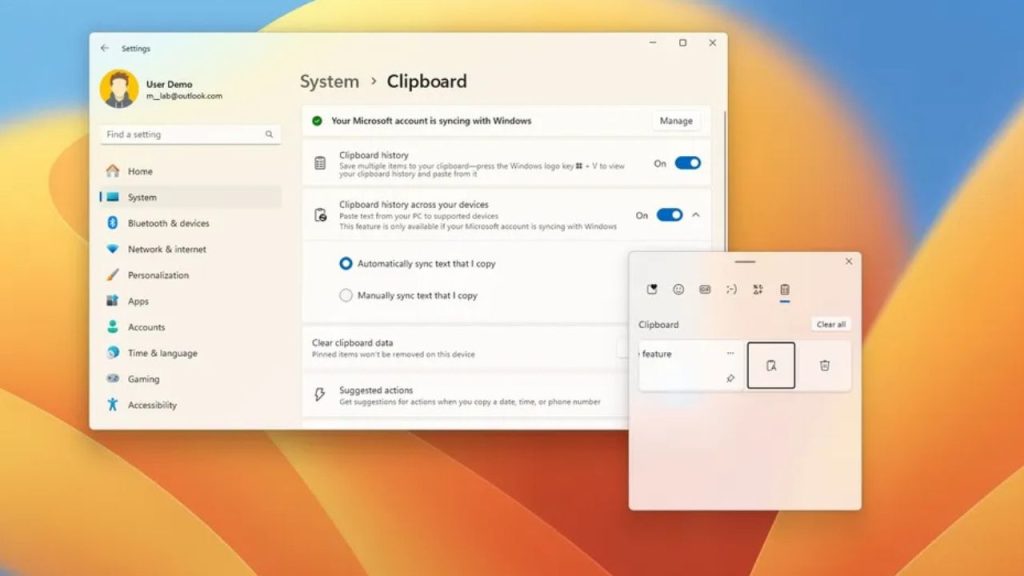
ClipHistory is the enhanced clipboard system accessed through Win + V, which stores multiple copied items instead of limiting the user to a single clipboard entry. This feature becomes extremely powerful once enabled, as it creates a rolling archive of recently copied text, images, links, and formatted content that can be recalled instantly. It acts like a personal reference library for frequently reused information, eliminating the need to repeatedly copy and paste the same items.
5. FocusTime
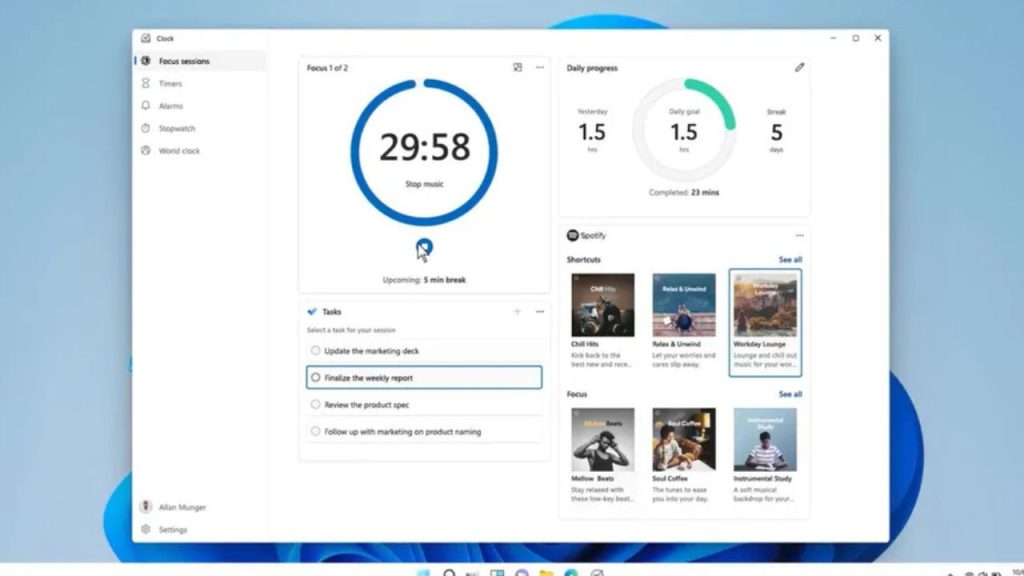
FocusTime is a structured productivity tool hidden inside the Windows 11 Clock app that helps users create distraction-free work sessions. It builds on principles like time-blocking and the Pomodoro technique by offering customizable timers, break schedules, and integrated task lists that sync with productivity apps. Users can also pair their sessions with music or ambient sounds to maintain concentration while working. FocusTime supports long-term consistency by tracking progress, encouraging healthy work rhythms, and helping users divide large tasks into manageable increments.
6. DeskSwitch
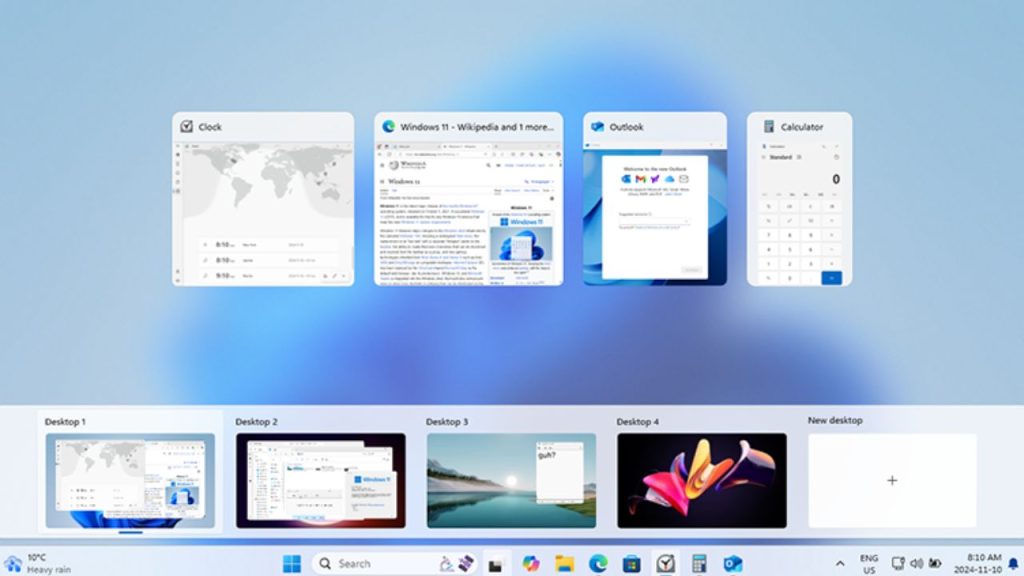
DeskSwitch refers to Windows 11’s virtual desktop system, which allows users to create multiple, separate desktops tailored to different activities or projects. This feature is incredibly powerful for reducing clutter and organizing workflows, but many people overlook its potential because they assume all windows must exist within a single space. DeskSwitch enables users to separate work, entertainment, research, creative tasks, or communication into dedicated environments, each with its own set of applications and even unique wallpapers.
7. SpeakType
SpeakType is the powerful voice-typing system activated through Win + H, offering hands-free text entry across any application in Windows 11. Its speech recognition capabilities have advanced significantly, allowing it to transcribe spoken words with impressive accuracy and fluidity. Automatic punctuation further enhances its practicality, removing the need to manually add periods, commas, or question marks. SpeakType is ideal for long writing sessions, note-taking, idea brainstorming, accessibility needs, or situations where typing quickly becomes tiring.
8. TermHub
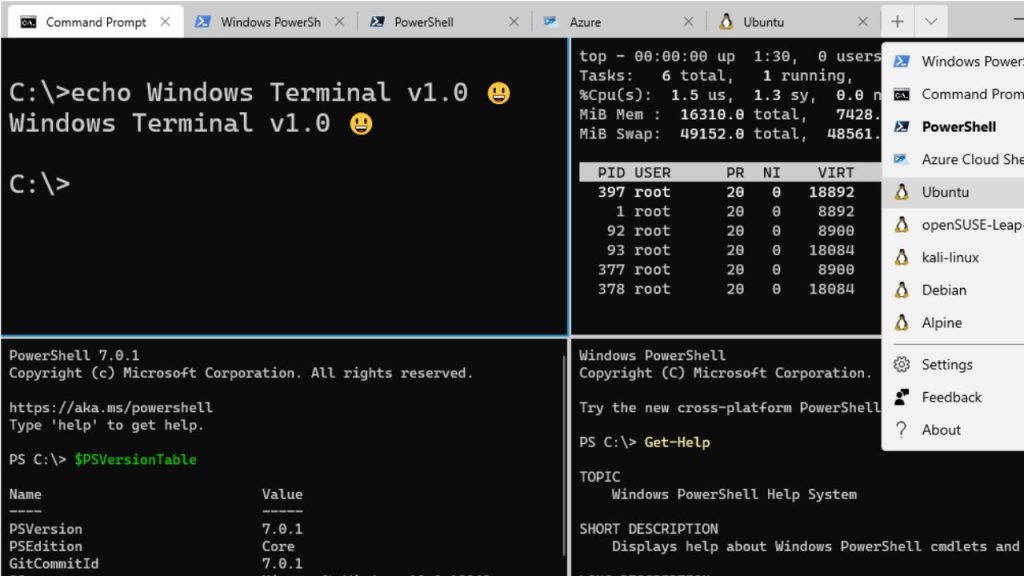
TermHub represents the Windows Terminal, a modern unified command interface that replaces isolated command windows with a streamlined, customizable environment. It brings PowerShell, Command Prompt, and Linux subsystems together in a single application equipped with tabs, split panes, and vibrant theme options. This allows developers, IT professionals, and advanced users to work across different command languages without juggling multiple windows. TermHub is not just visually appealing but also performance-optimized, offering better rendering and faster execution.
9. AeroShake
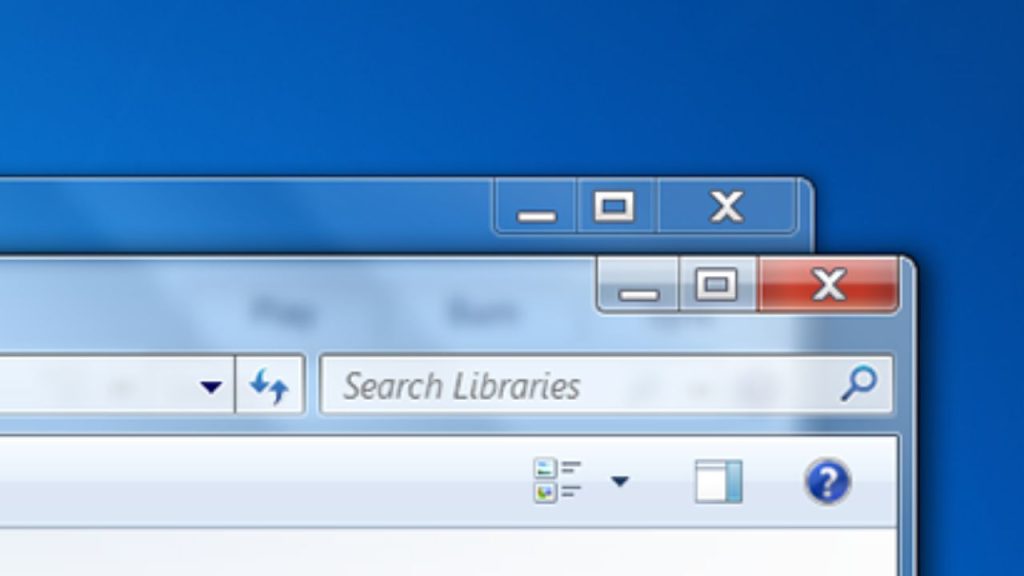
AeroShake is a simple yet remarkably effective gesture feature that minimizes all open windows except the one currently being held. By clicking and shaking a window’s title bar, users can instantly clear the screen, creating an uncluttered workspace that allows singular focus. Performing the gesture again restores all minimized windows to their previous positions, making it easy to transition between high-focus and multitasking states. While this feature first appeared in earlier versions of Windows.
10. SmartRefresh
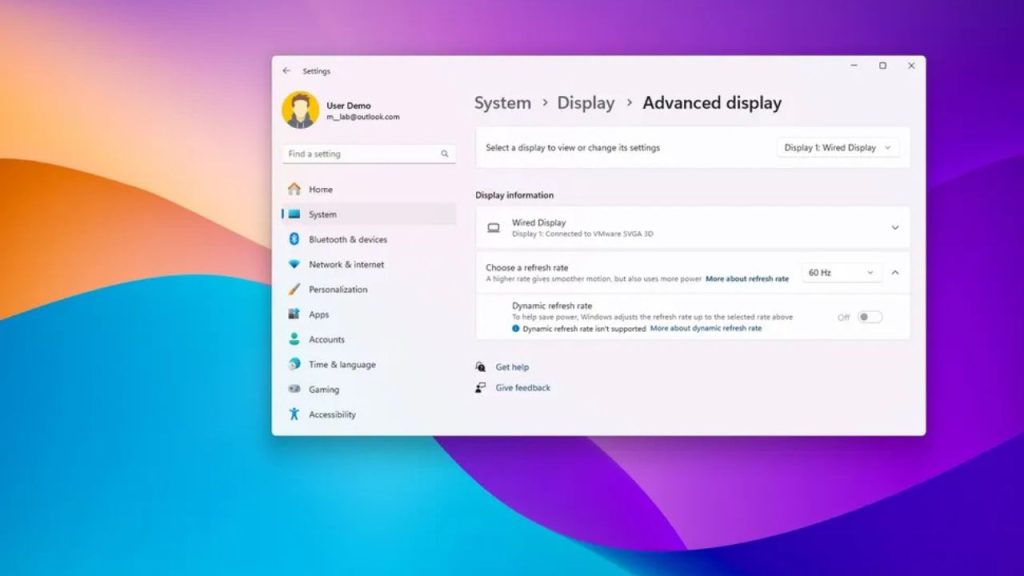
SmartRefresh refers to Windows 11’s dynamic refresh rate capability, available on supported screens, which intelligently adjusts the display’s refresh rate depending on the task being performed. When reading emails, browsing static pages, or reviewing documents, the system lowers the refresh rate to conserve battery life. When scrolling, animating, or navigating interfaces, it raises the refresh rate for smoother visuals. Many users with high-refresh-rate displays never discover this option because they assume their device runs at a fixed frequency.
11. ShareLink
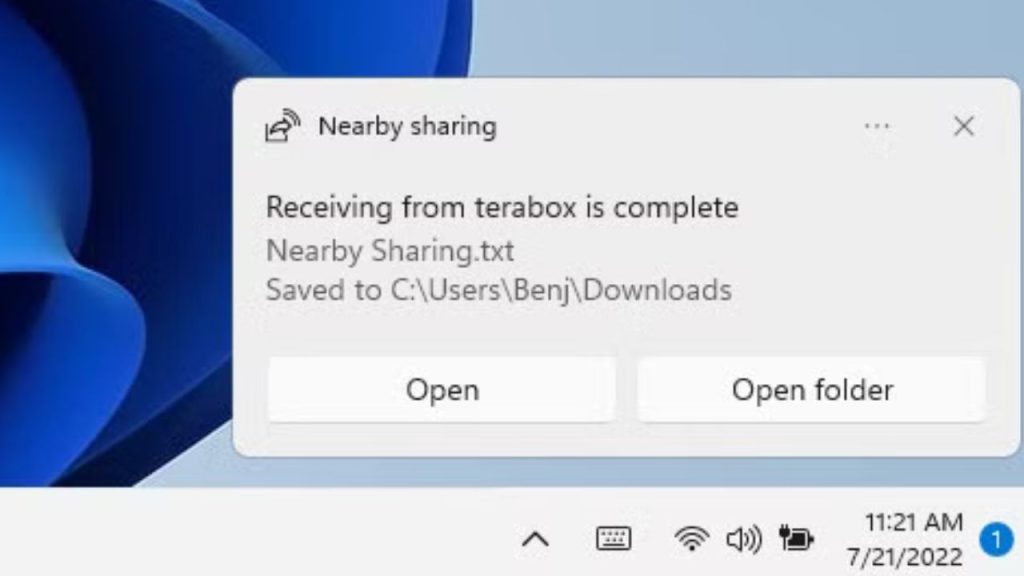
ShareLink highlights the Nearby Share feature, which enables fast, wireless file transfers between compatible Windows devices using Wi-Fi or Bluetooth. This tool eliminates the need for USB drives, cloud uploads, and email attachments when sharing documents, photos, or other content with nearby PCs. Although incredibly convenient, ShareLink often goes unused simply because people do not know where to find it or assume it requires a complicated setup. In reality, sending a file involves just a quick selection from the share menu.
12. EmojiGate
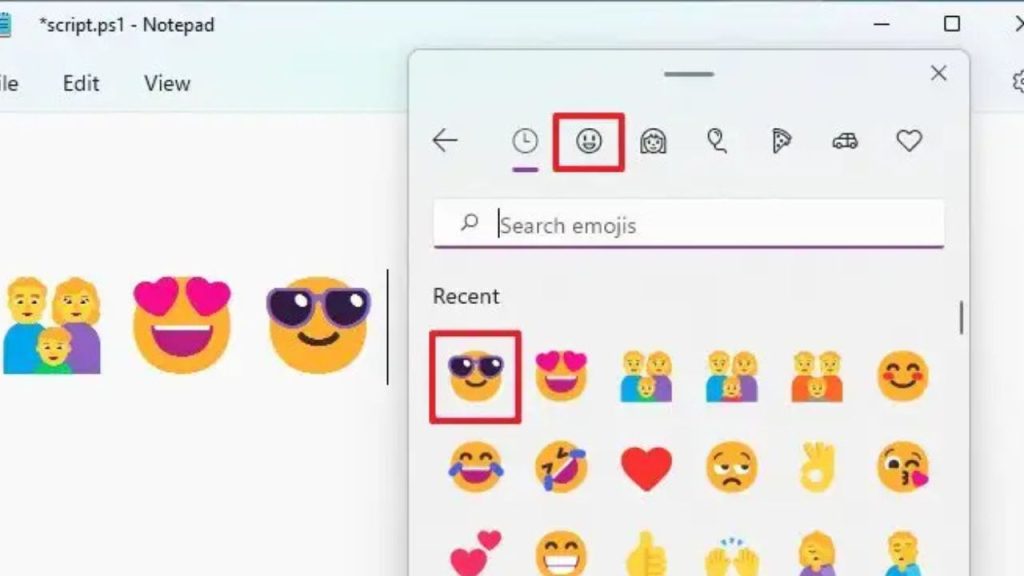
EmojiGate is the expressive and versatile emoji panel accessible through Win +. (period), offering far more than simple emojis. It includes symbols, mathematical characters, punctuation variants, currency signs, arrows, language accents, kaomojis, and even a full GIF search library. This tool brings expressive communication directly into the operating system, allowing users to enhance messages, documents, creative work, or casual conversations effortlessly. Many people overlook EmojiGate because they assume emoji panels are exclusive to mobile devices or social apps.